Digital Signage Player Guide: Hardware, Operating Systems and Offline Playback
How to choose a digital signage player: streaming sticks vs dedicated players, operating systems, offline playback, mounting and remote recovery.
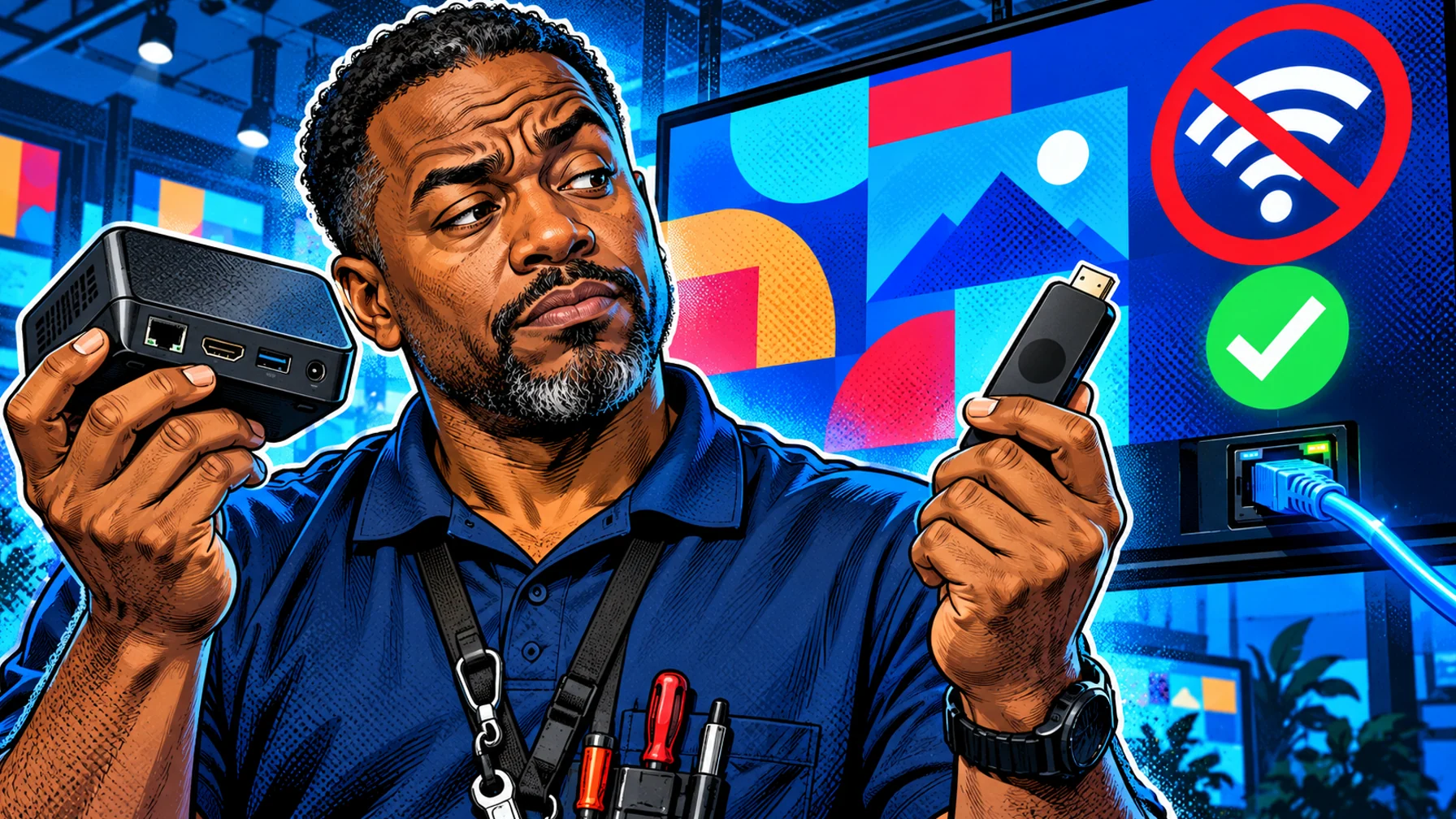
A digital signage player is the small computer behind a screen that downloads your content and plays it on schedule. Choosing one comes down to four questions: which form factor fits the screen (a streaming stick, a dedicated player or the TV's own system), which operating system your signage software supports, how well it handles offline playback, and how you will recover it remotely when something goes wrong. This guide compares the options so you can match the player to the job.
The three kinds of players
Built-in smart TV systems. Many displays run Android TV or Google TV and can install a player app directly. Cheapest option, fine for light use, but consumer TVs are not always designed to run 12+ hours a day.
Streaming sticks. A stick such as an Amazon Fire TV Stick plugs into any HDMI screen. Affordable and easy to replace, good for menus, lobbies and small offices.
Dedicated signage players. Purpose-built boxes made for screens that run all day: better cooling, wired networking, reliable power-on behaviour and mounting options. The right choice for drive-thrus, retail windows and large networks.
What actually differs between them
The three options can all play the same playlist; the difference is how they behave over months of daily use. Heat, network quality and power cuts are what separate a screen that just works from one that needs regular attention. A streaming stick tucked behind a TV runs warm and relies on Wi-Fi. A dedicated player usually has an Ethernet port, better ventilation and more storage for video. A TV's built-in system saves a device but ties the player to that screen's software and update cycle. For a closer look at the trade-off, read media player vs smart TV app.
Operating systems
Your signage software decides which systems you can use. Android-based devices (Android TV, Fire TV) are the most common for app-based signage because they are inexpensive and widely available. Before buying hardware in bulk, confirm the exact models your software supports. Pilosign runs on dedicated players, Android TV and Amazon Fire TV: see the supported players.
Two practical points matter more than the operating system's name. First, how the app starts: the player should open the signage app automatically after power-on, without someone pressing a remote. Second, how system updates are handled: automatic updates are useful for security, but prompts that appear on screen during opening hours are not. Check both on one device before you roll out.
Offline playback: ask before you buy
Networks fail. A good player keeps playing the content it has already downloaded when the connection drops and resyncs automatically when it returns. Ask your vendor three questions: Does content play from local storage? What does the screen show if the network is down at power-on? How quickly do changes arrive once the connection is back?
Then test it yourself. Publish a playlist, unplug the network cable or switch off Wi-Fi, and watch the screen for a few minutes. Turn the player off and on again while still offline. Reconnect and publish a small change. These three checks take a quarter of an hour and tell you more than any specification sheet.
Storage, resolution and video
Players differ in how much media they can hold and how smoothly they decode video. If your playlists are mostly images and short clips, almost any supported device will do. If you plan long, high-resolution videos or several videos in one loop, choose a player with more storage and test playback of your heaviest file. Match the output resolution to the screen: sending 4K to a full HD panel adds load without visible benefit, and the reverse makes text look soft.
Remote management and recovery
The most expensive part of a screen network is a site visit. Look for a dashboard that shows which screens are online, lets you push updates to one screen or a group, and helps you spot a player that has stopped. On the hardware side, choose players that power back on automatically after an outage and keep the app in the foreground.
As the network grows, consistency becomes the main recovery tool: the same player model, the same settings and the same naming everywhere mean a replacement can be paired and running in minutes. The guide to digital signage software for multi-location teams explains how to organise screens in groups so one person can look after many sites.
Installation tips
Use wired Ethernet where you can, especially for screens that matter to revenue. Mount the player behind the screen with airflow, not inside a sealed box. Label each player with its location so the dashboard name matches the real screen. Disable sleep and auto-update prompts that can interrupt playback.
Power together. Plug the screen and the player into the same switched supply so both restart together. Keep the remote safe. Store one remote per site in a known place; you will need it rarely, but you will need it. Leave slack in cables. A short HDMI or power cable under tension is a common cause of a blank screen. Pair on site, configure centrally. Enter the registration code shown on the screen once, then manage everything else from the dashboard.
Which player for which job?
One TV in a café or office: the TV's own system or a streaming stick. Menu boards and drive-thrus: dedicated players on wired networks. Many locations: standardise on one or two models so setup and replacement are predictable. For menu screens, see digital menu boards.
Lobbies and reception areas: a streaming stick or the TV's own system is usually enough, since content changes a few times a day. Factory floors and warehouses: dedicated players with wired networking cope better with heat, dust and interference. Retail windows: dedicated players behind bright commercial displays that are made to run all day.
Planning for replacements
Every player eventually needs replacing, whether after a power surge, a spilled drink or simply years of service. Plan for it from day one. Keep a small stock of spare devices of the same model, already updated and ready to pair. Write down the steps for a store manager in plain language: unplug the old device, plug in the new one, read the registration code on the screen and send it to the person who manages the dashboard. Because the content and schedules live in the software rather than on the device, the new player picks up the same playlist as soon as it is assigned to the screen.
Budget for the whole life of the screen, not just the purchase. A cheaper device that needs more site visits often costs more in staff time than a sturdier player that is rarely touched. When you review the network once a year, note which locations needed the most attention and whether the hardware, the network or the placement was the cause.
Player checklist
Supported model. The exact device appears in your signage software's supported list. Auto-start. The app opens on its own after power-on. Offline test passed. Content keeps playing without a network and recovers when it returns. Network. Ethernet where possible, strong Wi-Fi otherwise. Cooling. Open air around the device. Naming. Dashboard name matches the physical location. Spare. One spare player per region for fast swaps.
FAQ
Do I need a separate player for every screen? Usually yes: each screen needs its own player or a smart TV that runs the app, so it can play its own schedule.
Is a streaming stick reliable enough? For light use, yes. For screens that run all day or matter to sales, a dedicated player is safer.
Can I mix player types? Yes, as long as your software supports each one; standardising helps when you scale.
How do I add a new player? Install or open the app, read the registration code on the screen, and enter it in the dashboard. Pilosign then lists the screen in your account, ready for a playlist. See how to set up digital signage on a TV for the full steps.
What should I do if a screen goes blank? Check power and HDMI first, then the network, then restart the player. Consistent hardware and labels make this a five-minute job.
Start with the hardware you have: connect a screen for free and see how it runs.