Free Digital Signage Software for Smart TVs: What to Check First
Before you turn a smart TV into a free digital sign, check the device, the free plan limits, scheduling and remote management. A practical checklist.
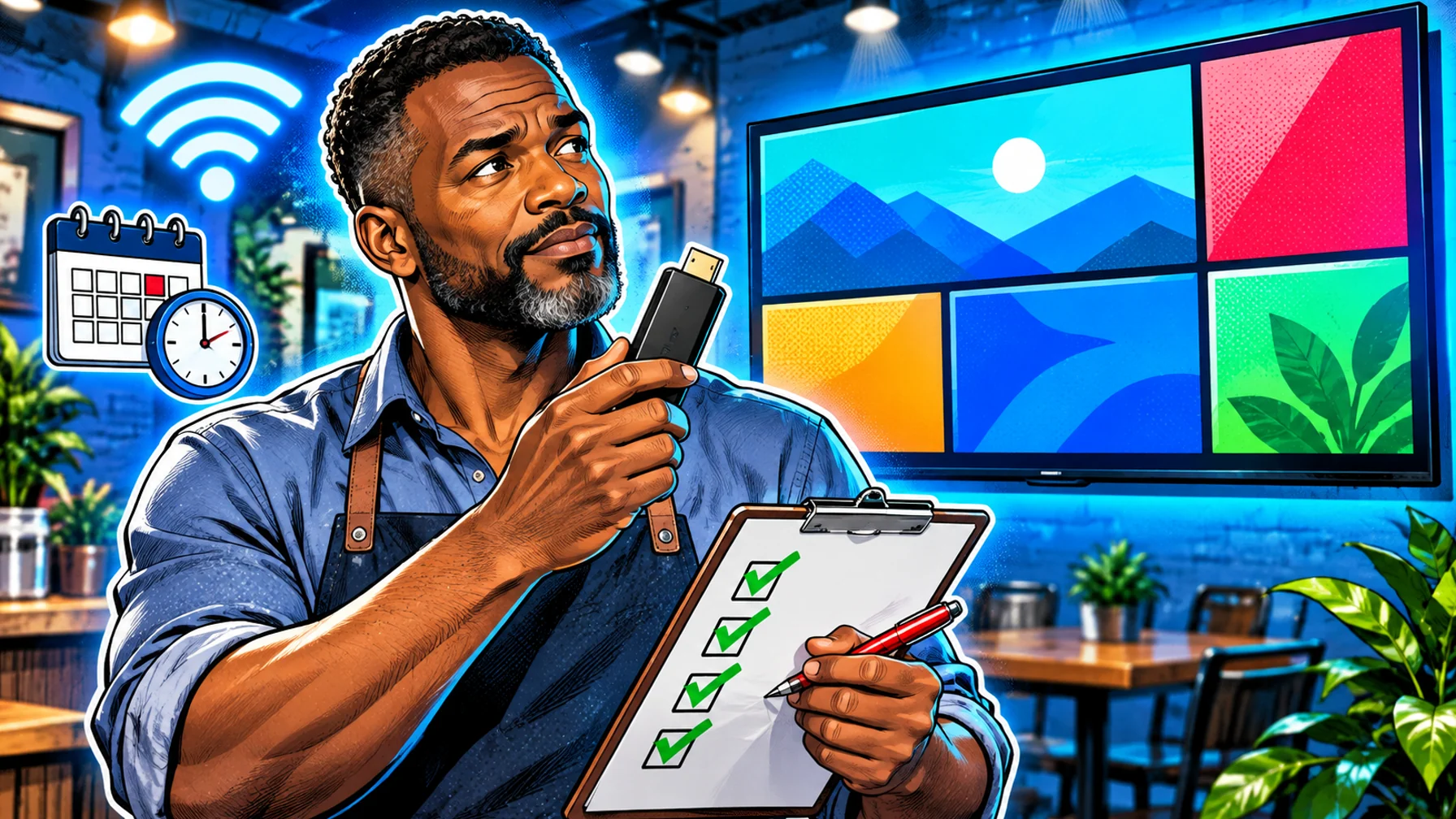
Free digital signage software lets you turn an ordinary smart TV into a managed business screen: you design content in a web dashboard, schedule it, and the TV plays it on its own. Before you pick a tool, check five things: whether your TV can run the player app, what the free plan really includes, how scheduling works, how you manage screens remotely, and what happens when the network drops. This guide walks through each check so the TV you already own becomes a reliable sign, not a weekend project.
Can your smart TV run a signage app?
Most free signage tools work through a small player app. Android TV and Google TV displays can usually install it directly. Other smart TVs (many brands use their own operating system) often need a streaming stick, such as an Amazon Fire TV Stick, plugged into an HDMI port. Dedicated signage players are the option for screens that run all day, every day.
Pilosign runs on Android TV, Amazon Fire TV and dedicated players. See the supported players and devices before you buy anything new.
How to find out what your TV runs
Open the TV's settings and look for the system or "about" page: it usually names the operating system and version. If you see an app store with familiar Android apps, you can most likely install a player app directly. If the TV only offers a small, fixed set of apps, plan on an HDMI device instead. Either way, test one TV before you commit to a whole room or a whole chain: the comparison between a media player and a smart TV app explains the trade-offs in more detail.
Consumer TV or commercial display?
A consumer TV is fine for a few hours a day in a meeting room or a quiet café. Screens that run from opening to closing, sit in a window or face customers all day are better served by a commercial display, which is built for long hours, brighter panels and steadier power-on behaviour. You can start with the TV you have and upgrade the screens that matter most once you know what works.
What does "free" include?
Free plans differ a lot. Before you sign up, look for clear answers to these questions. How many screens can you connect for free? Which features are included: templates, scheduling, live apps, remote management? Is there a watermark or a time limit on your content? What triggers a paid plan later?
Pilosign is free to use: the content editor, templates, scheduling and remote screen management are included when you sign up. Read more on free digital signage software.
Read the limits, not the headline
A free plan is only useful if it covers the way you actually work. Check whether you can upload your own images and video, whether templates can be edited with your logo and colours, and whether live content such as weather, news or a dashboard can sit next to your own slides. Ask what happens to your screens and content if you stop using the tool: you should be able to export your media and switch off cleanly.
Scheduling: the feature that saves the most time
A TV that loops the same slideshow all day is a missed opportunity. Look for scheduling by time of day and day of week, so breakfast and lunch content, opening hours or weekend offers switch on their own. If you have several locations, check that you can schedule per screen or per group of screens.
Three schedules most businesses start with
Opening hours and welcome. A morning playlist that greets customers or staff, shows today's hours and any notices. Main trading hours. Your core offer, products or services, rotated with one or two promotions. Quiet hours or evenings. A lighter loop, a reminder of tomorrow's opening time, or a different offer for late customers. Once these three are set, the screen changes during the day without anyone touching it.
Remote management
The real cost of a "free" screen is the time someone spends walking up to it. Good signage software shows every screen in one dashboard, tells you which ones are online, and lets you change content without touching the TV. Pairing should be simple: with Pilosign you open the app on the TV, enter the registration code shown on screen into your dashboard, and the screen appears in your account.
If you plan to add a second or third location, look at how screens are organised: groups by site, by area or by screen type make it possible to update one TV, one store or the whole network in a single step. The guide to digital signage software for multi-location teams covers that next stage.
Offline behaviour and reliability
Wi-Fi in shops and restaurants is rarely perfect. Ask how the player behaves when the connection drops: does it keep playing what it already downloaded, and does it catch up automatically when the network returns? Also check the TV's own settings: disable sleep timers and energy-saving modes that switch the screen off during opening hours.
A few habits make any TV more dependable. Place the router or an access point close to the screen, or run an Ethernet cable if you can. Plug the TV and any streaming stick into the same power source so both come back together after an outage. Turn off automatic app updates or system prompts that can cover the screen during the day, and check the screen once after the first week to make sure the schedule behaves as planned.
Setting it up in practice
The setup itself is short. Install the player app on the TV or on a streaming stick, open it, and note the registration code it shows. In the dashboard, enter that code to add the screen, give it a name that matches its real location, and assign a playlist. Start from a template, swap in your logo, products and colours, and publish. The step-by-step guide on how to set up digital signage on a TV goes through each stage with tips for mounting and cabling.
Your smart TV checklist
Device: the TV runs Android TV / Google TV, or you have a streaming stick or player for it. Connection: stable Wi-Fi or Ethernet at the screen. Power settings: sleep timers and eco modes are off. Content: logo, product images or video, or a template to start from. Schedule: what should play in the morning, afternoon and evening. Owner: one person responsible for updates.
Readability. Check the screen from the furthest point where customers will see it: text should be large, short and high-contrast. Placement. The screen sits at eye level or slightly above, away from direct glare. Content plan. Three to six slides per playlist, each with one clear message, refreshed at least monthly. Fallback. Know who to call and what to check if a screen goes blank.
FAQ
Can I use digital signage on a smart TV without extra hardware? Yes, if the TV runs Android TV or Google TV and can install the player app. Other TVs usually need a streaming stick or a small player.
Is free digital signage software good enough for a business? For one location and a few screens, a free plan with scheduling and remote management is often all you need. Check the limits before you grow.
How long does setup take? With a supported device, installing the app, pairing it and publishing a first template takes minutes.
Can I show live information such as weather or news? Many tools let you mix live apps with your own content. Pilosign supports live apps like weather, news and dashboards alongside your images and video.
What if I have screens in more than one location? Group the screens by location and schedule content per group, so each site shows the right information while one person manages everything from one dashboard.
Do I need a commercial display? Not to start. A consumer smart TV works for light use; switch to commercial displays for screens that run all day or face strong light.
Ready to try it on your own TV? Start with free digital signage software and connect your first screen.