Digital Signage Media Player vs. Smart TV App
Media player or smart TV app for digital signage? Compare cost, reliability, setup, management and lifespan to choose the right option for each screen.
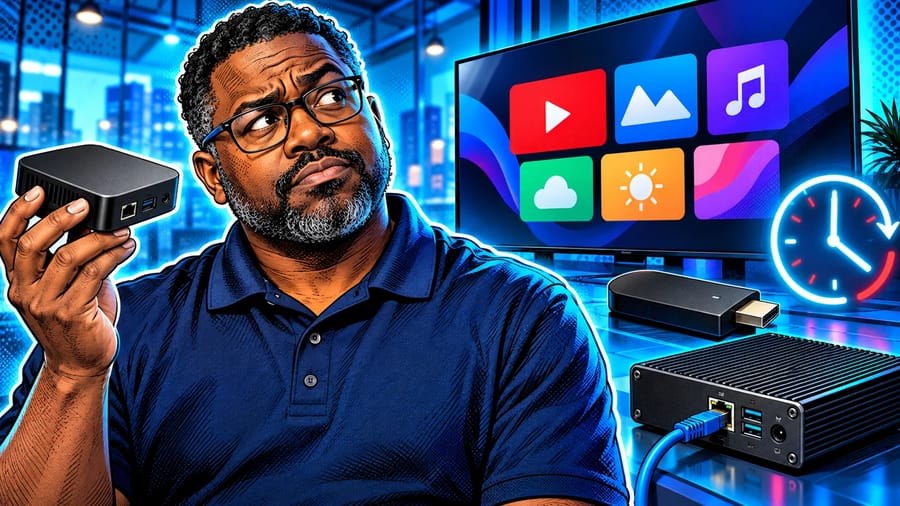
A digital signage media player and a smart TV app do the same job: they download the content you schedule and play it on the screen. The difference is where the player software runs. A smart TV app runs on the display's own operating system, so there is nothing extra behind the screen. A media player is a separate device, such as a streaming stick or a dedicated signage box, plugged into the TV by HDMI. The right choice depends on how long the screen runs each day, how much it matters to your business and how many screens you manage.
How each option works
Smart TV app. Many displays run Android TV or Google TV and can install a signage app from the store. You open the app, pair the screen with your account and it starts playing. The TV is the player.
Streaming stick. A small device such as an Amazon Fire TV Stick plugs into an HDMI port and runs the signage app. It turns almost any screen with HDMI into a managed display, including TVs whose own system cannot install the app.
Dedicated signage player. A purpose-built box designed for screens that run all day. It usually offers wired networking, better cooling, reliable power-on behaviour after an outage and mounting options behind the display.
Pilosign runs on dedicated players, Android TV and Amazon Fire TV, so you can mix these options in one network. The supported players and devices page lists what works today.
Cost: what you pay up front and later
A smart TV app looks cheapest because there is no extra hardware. That is true for a TV you already own, and it is a good way to start. A streaming stick adds a small cost per screen and is easy to replace if it fails. A dedicated player costs more per screen but is built for continuous use.
Look past the purchase price. The real cost of a screen includes the time someone spends fixing it. A cheap setup that freezes once a week and needs a site visit can cost more over a year than a sturdier player that runs untouched. For screens that sit in a back office, that trade-off rarely matters. For a drive-thru menu or a shop window, it often does.
Reliability and daily runtime
Consumer TVs are designed for evenings at home, not 12 or more hours a day. Their software may show pop-ups, install updates at awkward times or switch to an energy-saving mode. Check that you can disable sleep timers and eco modes, and that the TV returns to the signage app after a power cut.
Streaming sticks are fine for light and medium use. They can run warm when pushed behind a screen without airflow, and they rely on Wi-Fi unless you add an adapter.
Dedicated players are the safest choice for screens that matter to revenue or safety. Wired Ethernet, stable power-on behaviour and better thermal design reduce the number of times a screen goes dark.
Ask any vendor how its player behaves when the network drops: does it keep playing what it already downloaded, and does it catch up automatically when the connection returns? The answer matters more than the hardware brand.
Setup and pairing
All three options follow the same pattern with app-based signage: install the app, open it, pair the screen, assign content. With Pilosign you open the app on the TV or player, enter the registration code shown on screen into your dashboard and the screen appears in your account. If you want the step-by-step version, read how to set up digital signage on a TV.
The smart TV app wins on speed for a single screen: no cables, no extra device. Players win when you roll out many screens, because you can standardise on one model, prepare them in advance and swap a failed unit in minutes.
Management at scale
With one screen, almost any option works. With ten or a hundred, consistency matters. Mixing many TV models means different settings menus, different update behaviour and different quirks. Standardising on one or two player models makes setup, training and replacement predictable, whatever display sits in front of them.
Whichever you choose, manage everything from one place. Pilosign shows every screen in one dashboard, lets you group screens by location and update one screen, a group or the whole network remotely. The pillar guide on digital signage software for multi-location teams explains how to organise screens and permissions as you grow.
Lifespan and upgrades
Smart TV systems age with the display. When the TV stops receiving app updates, the signage app may eventually stop being supported, and you replace the whole screen. With an external player, you can upgrade the player and keep a perfectly good display. That separation is one of the strongest arguments for a player on large or expensive screens.
Which option for which screen
One TV in a café, office or waiting room. Start with the smart TV app or a streaming stick. It is the fastest way to see results. See free digital signage software for smart TVs for what to check first.
Menu boards and drive-thrus. Use dedicated players on a wired connection. These screens are hard to reach and costly when they fail. The digital menu boards page shows the scheduling side.
Retail windows and lobbies. A dedicated player behind a bright commercial display, because these screens run long hours and represent the brand.
Large networks. Standardise on one player model for most screens, and use smart TV apps only where a display already runs the app well.
A simple decision checklist
Hours per day. Under a few hours: the TV app is fine. All day: lean towards a player.
Business impact. If a dark screen costs sales or creates a safety risk, use a player and wired networking.
Access. Screens that are hard to reach should be the most reliable ones.
Fleet size. The more screens, the more you gain from one standard device.
Display age. Older or non-Android TVs need a stick or player anyway.
Network and security considerations
Wired beats wireless for important screens. Smart TVs and sticks usually rely on Wi-Fi. Dedicated players typically add an Ethernet port, which removes the most common cause of a frozen or outdated screen. If a screen sits far from the router, test the signal at the exact mounting spot before you choose a device.
Separate the screens from guest Wi-Fi. Put signage devices on a network segment your IT team controls, not the public guest network. Ask your IT or AV partner which ports and domains the player needs, and document them for every site.
Lock down the device. On a consumer TV, anyone with a remote can switch input or open another app. Hide the remote, disable unused inputs where the TV allows it, and check whether your setup can launch the signage app automatically at power-on. Dedicated players are usually easier to lock into one app.
Plan for updates. TV and stick operating systems update themselves on their own schedule. Ask your vendor how updates are handled on each device type and how to keep them from interrupting opening hours.
Mixing devices in one network
Most real networks end up mixed: a few smart TVs that already ran well, sticks on smaller screens and dedicated players on the screens that matter most. That is fine as long as the content side stays consistent. Build content once, schedule it by group and let each device play it. In Pilosign, screens of every supported type sit in the same dashboard, so a menu update or a local offer reaches a smart TV and a dedicated player in the same step.
Keep a short record per screen: device type, mounting location, network and who on site can reach it. When something fails, that note decides whether the fix takes five minutes or a site visit.
FAQ
Is a smart TV app good enough for business digital signage? For light use and a small number of screens, yes. For screens that run all day or matter to sales, a dedicated player is safer.
Do I need a separate media player for every screen? Each screen needs something that runs the player software: either the TV itself or a device plugged into it.
Can I mix smart TVs and media players in one network? Yes, as long as your software supports each device. Pilosign runs on dedicated players, Android TV and Amazon Fire TV.
What should I test before buying many players? Run one unit for a week on the real screen: check power-on after an outage, behaviour when the network drops and how updates arrive.
Start with the screen you have
The quickest way to decide is to try. Pair the TV you already own, see how it behaves for a week, then choose players for the screens that need more. Start with free digital signage software, or talk to us about a larger rollout.