Restaurant Digital Signage: 10 Use Cases for Faster Updates
Ten ways restaurants use digital signage to update menus, prices and offers faster: dayparts, local pricing, limited-time offers, queues and more.
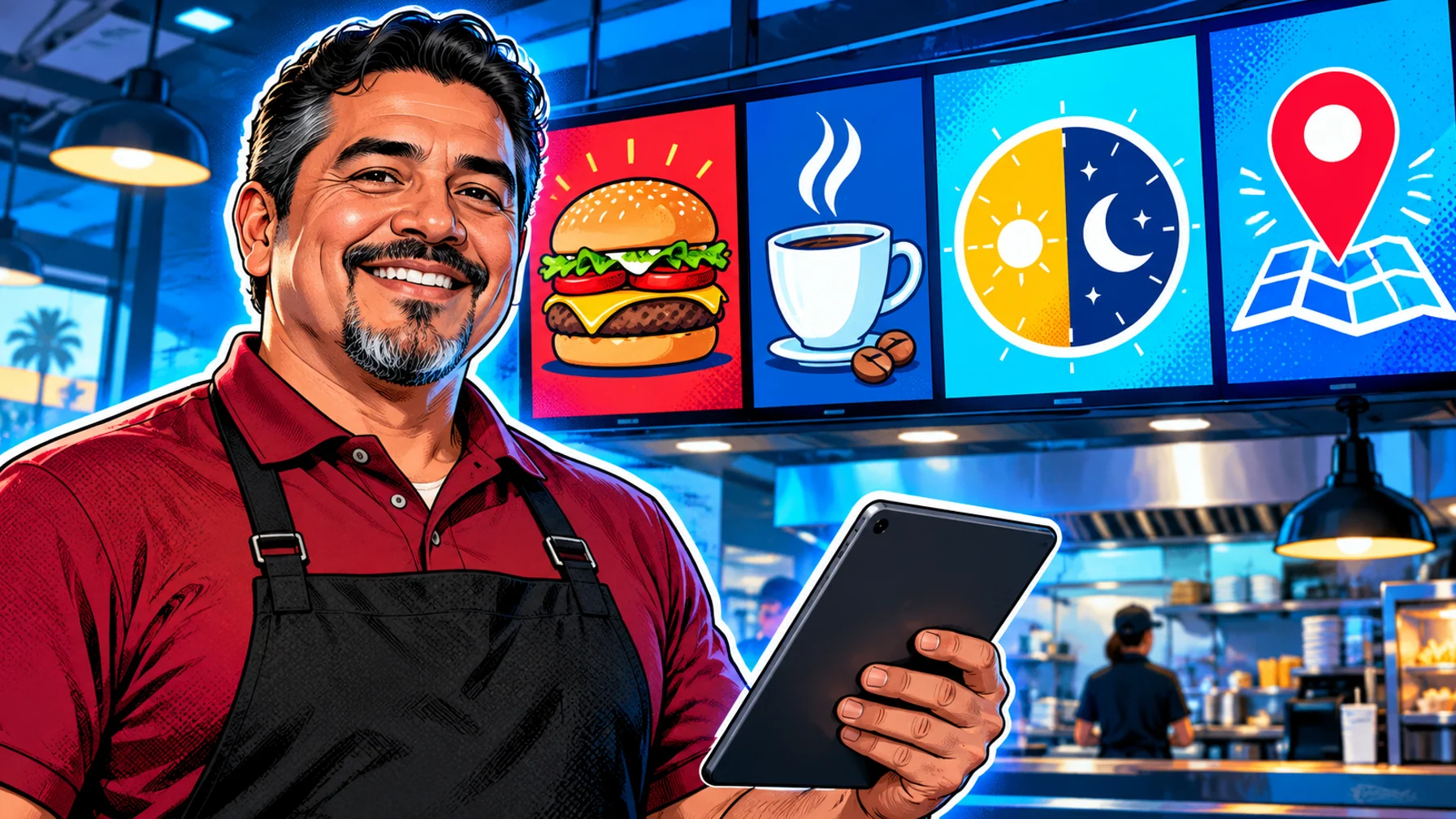
Restaurant digital signage replaces printed menu boards and posters with screens you can update remotely. The biggest benefit is speed: a price change, a sold-out item or a new offer reaches every screen in minutes instead of waiting for a reprint. Here are ten practical ways restaurants, cafés and quick-service chains use screens, from daypart menus to kitchen notices, and what each one needs to work well.
1. Daypart menus that switch on their own
Schedule breakfast, lunch, dinner and late-night menus by time of day so the right items show without anyone touching the screen. This is the single most valuable use of digital menu boards.
Set the schedule once and let it run: breakfast from opening until mid-morning, lunch through the afternoon, dinner in the evening, and a shorter late-night menu if you stay open. Weekends can follow their own schedule, for example a brunch menu that replaces breakfast on Saturdays and Sundays. The guide to daypart menu boards goes deeper into planning the switch times and keeping each menu short.
2. Price changes in minutes
When costs move, update a price once and publish it to every location, or only to the stores affected. No reprints, no mismatched boards.
Keep prices in the menu itself rather than baked into images, so a change means editing one field, not redesigning a slide. Schedule price changes to take effect at opening time, so customers and staff never see two different prices during the same shift.
3. Local prices and items
One menu template can show different prices or items per location, so a city-centre store and a highway store stay on brand while reflecting local pricing.
The same idea works for regional specials and local suppliers: a store can feature a local dessert or a seasonal dish while the core menu stays identical everywhere. Head office controls the design; each location controls only what is meant to differ.
4. Limited-time offers
Launch a seasonal item or a promotion on every screen on the same day, and let it end automatically on its last day so expired offers never linger.
Plan offers as scheduled items with a start and an end date. Prepare the content a week ahead, check it on one screen, then let the schedule publish it everywhere on launch day. When the offer ends, the board returns to the regular menu without a late-night update.
5. Combos and upsells
Place meal deals and add-ons next to the items they go with. A screen can rotate upsells by daypart: a pastry with morning coffee, a dessert after lunch.
Keep upsells simple: one suggestion per screen area, shown next to the item it complements. Rotating three or four suggestions through the day keeps the board fresh without crowding the main menu.
6. Short menu videos
Motion draws the eye. A short loop of a hero product (steam rising from a coffee, a burger being assembled) near the counter can lift attention on the items you want to sell.
Use motion sparingly: one moving area on a board is enough, and the rest should stay still and easy to read. Short loops of a few seconds work best, with prices kept as readable text rather than inside the video. See AI menu video templates for ideas on producing these clips quickly.
7. Sold-out and allergen updates
Hide an item the moment it sells out, and keep allergen and dietary information up to date and readable.
A remote update avoids the familiar handwritten "sold out" note taped over a printed board. For allergens, show clear symbols next to each item and keep a full allergen screen or panel where customers can read it calmly, away from the busiest part of the queue.
8. Queue and order-ready screens
Show waiting times or order-ready messages near the pick-up area so customers know what is happening.
Even without a connection to your ordering system, a pick-up screen can show general guidance: where to collect orders, how to use the self-order points and what to do if an order is missing. While customers wait, the same screen can show tomorrow's breakfast offer or a loyalty reminder.
9. Drive-thru boards
Outdoor and drive-thru screens benefit most from scheduling and remote updates, because they are the hardest to change by hand. Use a reliable dedicated player on a wired connection.
Drive-thru boards have to be readable in seconds, from a car, in daylight and at night. Keep the number of items per panel low, use large prices and high contrast, and choose commercial displays bright enough for outdoor viewing. Test the board from the driver's seat before you finalise the layout.
10. Staff and kitchen notices
Back-of-house screens share shift notes, food-safety reminders and training clips with a team that rarely sits at a computer.
Useful kitchen content includes today's specials and their preparation notes, cleaning and food-safety reminders, shift changes, and short recognition messages. Schedule them like front-of-house content so the morning team and the evening team each see what is relevant to them.
Choosing where to start
You do not need all ten at once. Pick the use case that saves the most time today. For most restaurants that is the main menu board with daypart schedules, followed by limited-time offers. Cafés often start with a single screen near the counter, while chains usually start with a pilot store before rolling out. The complete guide to digital menu boards covers hardware, design and rollout in detail.
Content tips for restaurant screens
One message per area. Each part of the board should answer one question: what is on the menu, what is new, or what goes well with my order. Real food photography. Use your own photos of your own dishes, shot in good light; customers notice when the picture does not match the plate. Consistent layout. Keep categories in the same position across dayparts so regulars find what they want quickly. Short copy. Names, prices and one short line of description are enough; longer explanations belong on a separate screen or a printed menu. Contrast and size. Light text on dark backgrounds, or the reverse, with prices large enough to read from the back of the queue.
Checking what works
You do not need complex analytics to learn from your screens. Compare sales of a promoted item during the weeks it was on screen with the weeks it was not, and ask staff which questions customers stop asking once a screen answers them. Change one thing at a time, such as the position of an upsell or the timing of a daypart, so you can tell what made the difference. Keep the changes that help and drop the ones that do not.
Restaurant screen checklist
Readable. Prices and item names can be read from the back of the queue. Current. No expired offers or sold-out items on screen. Scheduled. Dayparts and offers switch on their own. Consistent. Every location uses the same template, with local prices where needed. Reliable. Dedicated players and wired connections for drive-thru and main menu screens. Owned. One person per location knows how to check a screen and who to call.
How to get started
Start with one screen and one use case, usually the main menu board. Pick a template, set your dayparts, then add locations. Pilosign is free to use: connect your first screen and see the restaurant digital signage page for more ideas.
FAQ
What is the best first use case for a restaurant? Daypart menus: they save time every day and show customers the right items at the right moment.
Can each location show its own prices? Yes. Use one template and set location-specific prices or items.
What hardware do restaurants need? A commercial display, a player or supported smart TV, and a stable connection. Dedicated players are recommended for drive-thrus.
How many items should a menu screen show? Fewer than you think. Group items into clear categories and spread them across several screens rather than crowding one.
Can I update screens from outside the restaurant? Yes. Changes are made in the dashboard and published remotely, so a manager can update every location from one place.
Do videos slow down the menu? Short loops on a supported player play smoothly; keep one moving area per board and test your heaviest clip before rollout.