
How Does Digital Signage Work? CMS, Players and Displays Explained
How digital signage works, step by step: the CMS where content is made, the player that downloads it, the display, the network and the schedule.
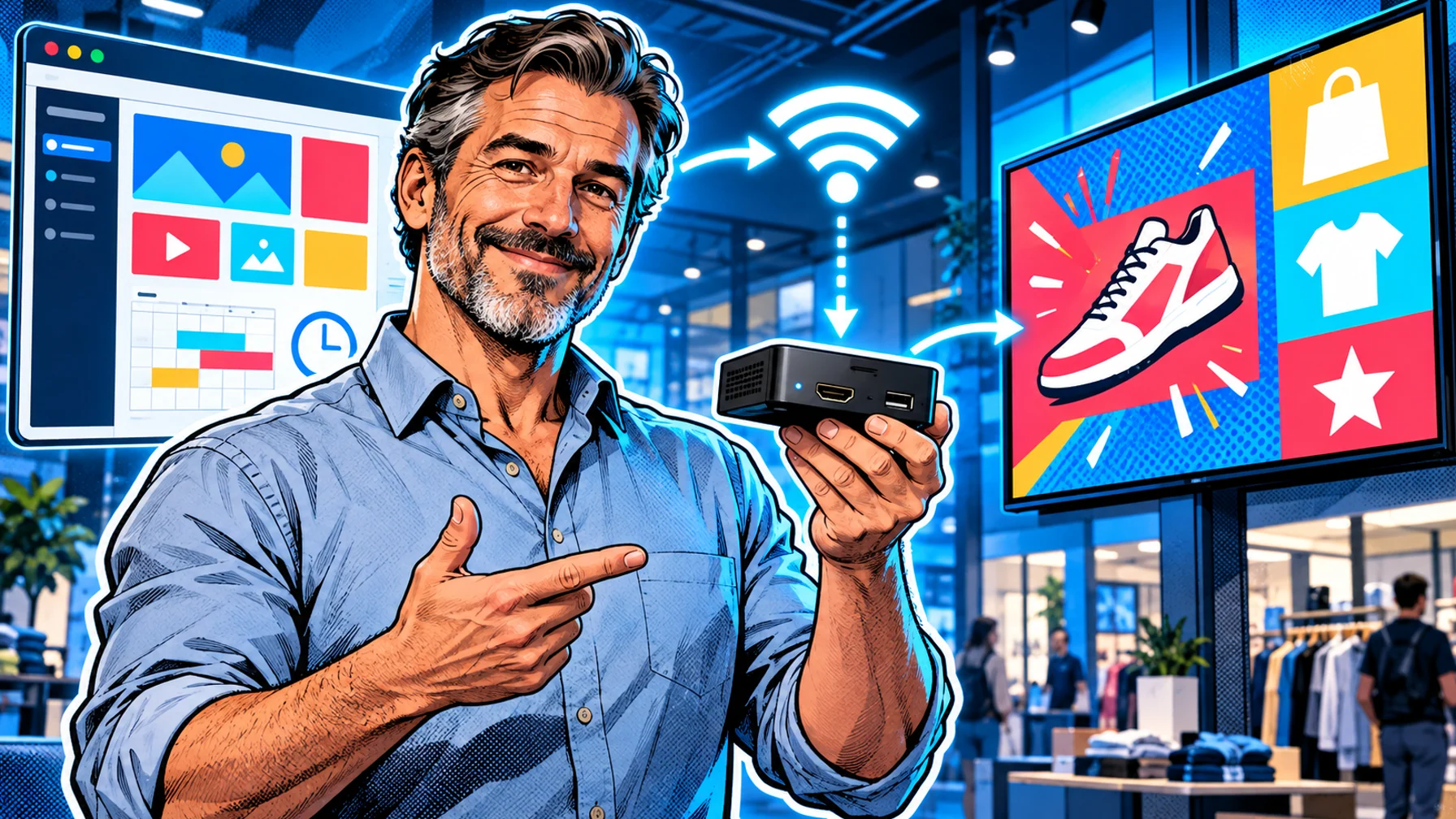
How does digital signage work? In short, you create content in a web-based content management system (CMS), the CMS sends it over the internet to a small computer called a player, and the player shows it on a display according to a schedule you set. The display can be a commercial screen or a TV; the player can be a dedicated box, a streaming stick or the TV's own system. Because the content lives in software rather than on paper, you can change it remotely, plan it by time of day and update many screens at once. This guide follows content from the dashboard to the screen and explains what happens at each step.
The four parts of every digital signage system
Every digital signage setup, from one café menu to hundreds of retail screens, has the same four parts.
The CMS. A web dashboard where you design or upload content, arrange it into playlists, set schedules and see every screen. This is the part people interact with every day.
The player. The device that receives content and plays it. It can be a dedicated signage player, an Android TV display, or a streaming stick such as an Amazon Fire TV Stick plugged into an HDMI port.
The display. The screen people look at. Any display with an HDMI input works; commercial displays are designed for long daily hours.
The network. Wi-Fi or Ethernet connects the player to the CMS so updates arrive without anyone visiting the screen.
The complete guide to digital signage software covers the CMS side in depth; this post focuses on how the parts work together.
Step 1: content is created in the CMS
Everything starts in the dashboard. You choose a template or start from scratch, add your logo, product photos, videos and text, and save the result as a piece of content. Templates matter because they keep layouts consistent and readable at a distance, and they make the next update a two-minute job.
Content can also be live. Instead of a static image, a slide can show weather, news, a clock or a dashboard that updates on its own. Pilosign supports live apps like these alongside your own media, so a screen can stay fresh without daily edits.
Step 2: content is arranged into playlists and schedules
Individual slides are grouped into playlists: a loop of items that play one after another, each for a set number of seconds. A menu board might have one playlist for breakfast and another for lunch; a lobby screen might mix a welcome message, company news and the weather.
Schedules decide which playlist plays when. You can set content by time of day, day of week and date range, so a breakfast menu switches to lunch at 11:00 or a promotion runs for exactly two weeks. Good scheduling is what turns a screen from a slideshow into a sign that always shows the right thing.
Step 3: screens are paired and grouped
Before a screen can receive content, its player is connected to your account. With Pilosign you install the app on the TV or player, it shows a registration code, and you enter that code in your dashboard. The screen then appears in your list, ready to receive a playlist.
As you add screens, you group them by location or purpose: all counter screens in one store, all lobby screens across offices, all drive-thru boards in a region. Groups let you send one update to every relevant screen at once, while still giving a single screen its own content when needed. This is the foundation of digital signage software for multi-location teams.
Step 4: the player downloads and plays
When you publish, the CMS makes the new playlist and schedule available to the assigned screens. Each player downloads what it needs and plays it on the display at the scheduled times. Most players check for changes regularly, so an update you make from your desk reaches the screen within minutes.
What happens when the connection drops depends on the player and the software. Ask your vendor whether content plays from local storage during an outage and how quickly screens catch up when the network returns. The digital signage player guide covers these questions and the hardware choices behind them.
Step 5: you manage screens remotely
After launch, the work moves to the dashboard. You can see your screens, change playlists, launch a new promotion or replace a sold-out item without touching the hardware. When a screen needs attention, the dashboard is where you notice it, and remote updates mean most fixes never require a site visit.
Security and access
Because signage is managed online, treat it like any other business system. Give each person their own login rather than sharing one, remove access when people leave, and keep player devices on a network you control. Ask your vendor how accounts are protected and how screens are paired, so a stranger cannot take over a display. Pairing by a code shown on the screen itself, as Pilosign does, means a screen only joins your account when someone with physical access to it enters that code.
Displays: what matters for the screen itself
Brightness. Indoor screens in normal lighting are fine with standard brightness; windows and sunny spaces need much brighter commercial displays.
Duty cycle. Consumer TVs are designed for a few hours a day. Screens that run all day, every day, last longer when they are rated for it.
Orientation and size. Portrait screens suit windows and entrances; landscape suits menus and dashboards. Size follows viewing distance.
Power settings. Disable sleep timers and energy-saving modes that switch the screen off during opening hours.
Players: which kind to choose
The TV's own system. Android TV and Google TV displays can run a player app directly. Cheapest and simplest for light use.
Streaming sticks. An Amazon Fire TV Stick turns any HDMI screen into a sign. Affordable and easy to replace.
Dedicated players. Purpose-built boxes for screens that matter to revenue or run around the clock, often with wired networking.
Pilosign runs on dedicated players, Android TV and Amazon Fire TV. See the digital signage player page for details.
Who does what in a signage system
Even a small setup has a few roles. The content owner decides what screens should say and keeps it current; in a café that is the owner, in a chain it is often marketing. The approver checks campaigns before they go live, which matters when several people create content. The screen owner at each location makes sure the screen is powered, connected and mounted correctly. In a small business one person can do all three; in a larger network, writing the roles down avoids screens that nobody updates.
The software should make these roles easy: templates so non-designers can edit safely, screen groups so one person can update every location, and a clear view of which screens are online.
Putting it together: an example
A café wants a menu board above the counter. It mounts a TV, plugs in a streaming stick, installs the Pilosign app and enters the registration code in the dashboard. In the CMS it builds two menus from a template, one for breakfast and one for lunch, and schedules them by time of day. When the price of a coffee changes, the owner edits one field and publishes; the screen updates within minutes. That is the whole system: CMS, player, display, network and schedule. More menu examples are in the digital menu boards solution.
Frequently asked questions
Does digital signage need an internet connection? To receive updates, yes. What plays during an outage depends on the player and software, so ask your vendor how content behaves offline.
Is the CMS installed on a computer? Modern signage software runs in the browser, so you can manage screens from any computer.
Can one CMS manage different types of players? Usually yes, as long as each player model is supported. Standardising on one or two models makes setup and replacement easier.
How long does an update take to appear? Typically minutes, depending on how often the player checks for changes and the size of the content.
Can I start with the TV I already have? Yes, if it runs Android TV or you add a supported streaming stick or player.
See it working on your own screen
The quickest way to understand how digital signage works is to pair one screen and publish a template. Start with free digital signage software, or contact us if you are planning several locations.