
The Complete Guide to Digital Signage Software
A complete guide to digital signage software: what it does, how CMS, players and screens work together, key features, costs and how to choose one.
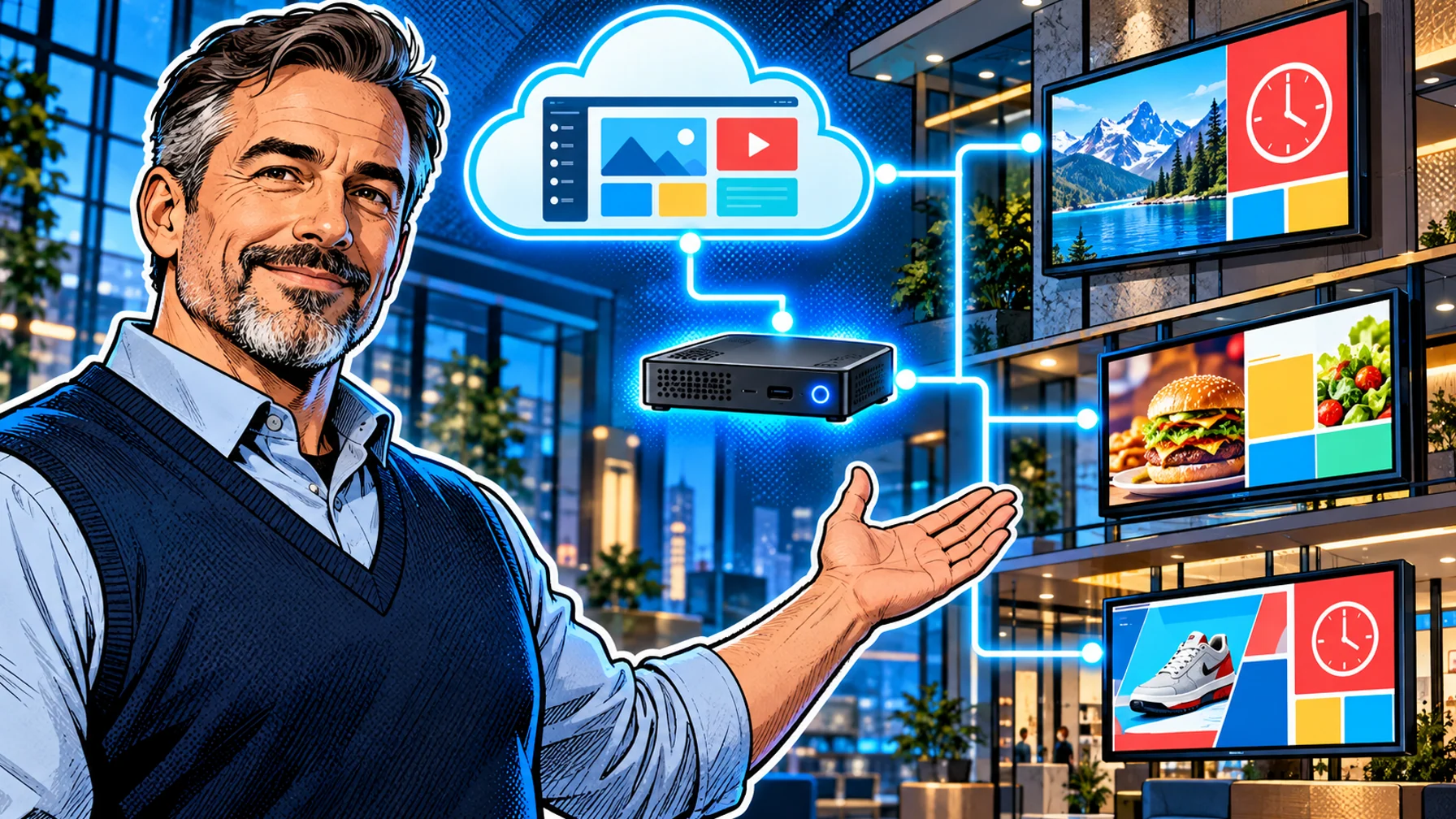
Digital signage software is the system that decides what appears on your business screens, when it appears and where. This guide to digital signage software explains how it works, from the content management system (CMS) in your browser to the player behind each screen, which features matter, what it costs to run, and how to choose a platform that fits one café TV or a network of hundreds of displays. Whether you are replacing printed posters, building digital menu boards or sharing updates with staff, the same building blocks apply, and understanding them makes every later decision easier.
What digital signage software does
At its simplest, digital signage software replaces the USB stick. Instead of loading a slideshow onto every TV by hand, you upload content once to a central dashboard, arrange it into playlists, decide when and where it should play, and the screens update themselves.
Most platforms bundle four jobs into one product. Content creation: an editor or template library to design slides, menus, announcements and promotions without a designer for every change. Media management: a library for images, video and live content such as weather, news or dashboards. Scheduling: rules that decide which content plays on which screen at which time of day, day of week or date range. Screen management: a view of every screen and player, so you can see what is online, group screens by location and push updates remotely.
The difference between a TV showing a looping slideshow and a managed signage network is that last part. Once screens can be updated and monitored from one place, they stop being a project that someone has to babysit and become a channel you can plan like email or social media. Our digital signage software page shows how Pilosign brings these jobs together.
How digital signage works: CMS, players and screens
Every signage setup has three layers, and it helps to think about them separately.
The CMS (content management system). This is the web dashboard where your team works. You upload media, build playlists, create schedules and manage screens. Because it runs in the browser, people in different locations can work on the same network without installing anything.
The player. The player is the small computer that downloads your content and plays it on the display. It can be a dedicated signage player, a streaming stick plugged into an HDMI port, or a smart TV that runs a player app directly. Pilosign runs on dedicated players, Android TV and Amazon Fire TV. Our digital signage player guide compares the options in detail.
The screen. The display itself: a consumer TV for a small office, a commercial display rated for long hours, a high-brightness panel for a shop window, or a menu board above a counter.
The flow is always the same. You publish in the CMS, the player checks for changes and downloads them, and the screen shows the result. When you understand that chain, most troubleshooting questions answer themselves: if the content is wrong, look at the CMS and the schedule; if the screen is blank, look at the player and its connection; if the picture looks poor, look at the display and the content resolution.
Types of digital signage software
Signage software is sold in a few different shapes. Knowing which one you are looking at avoids comparing very different products.
Cloud-based platforms. The CMS runs as a hosted service and players connect over the internet. This is the most common model today because there is no server to maintain and updates reach every location at once. Pilosign is a cloud platform you can use for free.
On-premises software. The CMS is installed on a server you run yourself. It suits organisations with strict network rules, but it adds maintenance, backups and security patching to your workload.
Single-purpose tools. Some products focus on one job, such as menu boards, meeting room panels or queue screens. They can be excellent at that job but harder to extend when you want the same screens to do more.
Device-bound systems. Some display makers ship their own management software that only works with their hardware. That can be convenient for a single-brand rollout, and limiting when you want to mix devices or change suppliers later.
For most businesses, a cloud platform that supports several player types gives the best balance of flexibility and effort.
Core features to look for
Feature lists are long, but a handful of capabilities decide whether a platform saves time every week.
Content creation and templates
Look for templates you can adapt to your brand, with layouts that stay readable from a distance. Check that you can upload your own images and video, combine them with text, and reuse designs across screens. If several people will edit content, the ability to keep logos, colours and fonts consistent matters more than the number of templates. Pilosign includes a content editor with templates, and you can upload your own media.
Live content and apps
Static slides go stale quickly. Live content such as weather, news, clocks and dashboards keeps screens useful without daily edits. Ask which live apps are included, how often they refresh, and whether they can be mixed into the same playlist as your own content.
Scheduling
Scheduling is the feature that turns screens from decoration into a channel. At a minimum you want to schedule by time of day, day of week and date range, and to target a single screen, a group of screens or every location at once. Restaurants use this for breakfast and lunch menus; retailers for weekend promotions; offices for meeting-day announcements. For a restaurant example, see digital menu boards.
Screen groups and multi-location control
As soon as you have more than a few screens, you need to organise them: by site, by area within a site, or by purpose. Groups let you publish once and reach exactly the right screens. A single dashboard for every location means head office and local teams work from the same picture of the network. We cover this in depth in digital signage software for multi-location teams.
Remote management and reliability
You should be able to see which screens are online, change content without visiting the site, and spot a player that has stopped. Ask how the player behaves when the network drops: does it keep playing what it has already downloaded, and does it catch up automatically when the connection returns? Those answers matter more for revenue screens, such as menu boards and shop windows, than for a lobby welcome screen.
Device support
The software decides which hardware you can use. Check the supported players and operating systems before you buy screens in bulk. Supporting common devices such as Android TV and streaming sticks keeps costs down and makes replacements easy. Pilosign pairs with a screen when you enter the registration code shown on the TV into your dashboard.
Measurement
If screens support promotions or advertising, you will eventually want evidence of what played and where. Some platforms keep play logs or proof-of-play reports. Ask what is recorded, for how long, and how you can export it.
Common use cases
Digital signage software is used wherever a message needs to reach people who are not looking at a computer.
Restaurants and cafés. Digital menus, daypart schedules, limited-time offers and order-ready screens. See restaurant digital signage and our list of restaurant use cases.
Retail. Window displays, in-store promotions, new arrivals and local offers that change by store. See digital signage for retail.
Offices. Internal communications, dashboards, visitor welcome screens and conference room displays.
Healthcare. Calm, patient-friendly information in reception areas and waiting room screens, plus wayfinding between departments.
Manufacturing. Safety reminders, shift information and production dashboards for teams on the floor.
Education and transportation. Campus announcements, event information, timetables and digital wayfinding.
You will find ideas for each sector on the industries page, and the solutions page groups the most common jobs screens do.
What digital signage costs
The total cost of a signage network has three parts, and software is often the smallest.
Software. Pricing models vary: free plans, per-screen subscriptions, tiered plans with feature limits, or one-off licences for on-premises software. When you compare, look at the cost per screen per year and at what the entry plan includes. Pilosign is free to use, so you can start without a budget line.
Hardware. Displays and players. A streaming stick costs far less than a dedicated player, and a consumer TV less than a commercial display, but the cheaper options are not always designed to run all day. Match the hardware to how important and how busy each screen is.
Content and time. The hidden cost is the hours someone spends designing, updating and checking screens. Templates, scheduling and remote management reduce that time, which is why they matter more than any single feature.
A practical way to budget is to start with one or two screens on hardware you already own, measure how much time updates take, and only then plan the rollout.
How to choose digital signage software
Use these steps to narrow the field quickly.
1. Define the jobs. List the screens you have or plan, where they are and what each one should do: menu, promotion, information, wayfinding, dashboard.
2. Check your hardware. Note which TVs and players you already own and whether the software supports them. Read the player guide if you need new devices.
3. Test the daily workflow. Create a playlist, schedule it for tomorrow morning, and change one item. The tool that makes this quickest is usually the right one.
4. Think about scale. Even if you start with one screen, check how screens are grouped and how several locations are managed.
5. Ask about reliability and support. Offline behaviour, how you find a stopped screen, and who helps when something breaks.
6. Start small. A free plan or trial on one screen tells you more than any feature list. You can start with free digital signage software and connect a TV in minutes; our checklist for free digital signage software on smart TVs covers what to check first.
Setting up your first screen
Getting started is simpler than most teams expect. Connect the screen: open the player app on a supported TV or player and note the registration code it shows. Pair it: enter that code in your dashboard and the screen appears in your account. Create content: start from a template or upload your own images and video, and add a live app such as weather or news. Schedule and publish: choose which screens show what and when, then publish. Updates go live remotely.
Before you leave the screen, check its power settings: disable sleep timers and energy-saving modes that switch the display off during opening hours, and use a wired connection where you can for screens that matter.
Best practices for content that works
The best software cannot rescue unreadable content. A few rules keep screens effective.
One message per slide. People glance at screens for seconds. Lead with one idea and one image.
Readable at distance. Large text, strong contrast, and fewer words than you think.
Fresh and timely. Schedule content by daypart and date so it stays relevant, and let promotions expire automatically.
Consistent brand. Use templates so every location looks like the same business.
Designed for the place. Calm, slower content in waiting areas; bold motion in shop windows; clear data on factory dashboards.
Digital signage software vs. the alternatives
Many teams start with something simpler, and it helps to know where each option stops working.
A USB stick in the TV. Free and immediate, but every change means walking to every screen. There is no scheduling, no way to see whether the screen is on, and content drifts out of date between visits. It works for one screen that rarely changes.
Casting from a laptop or phone. Useful for a meeting, fragile for a permanent screen: the moment the device sleeps, leaves the room or updates, the screen goes blank.
A design tool plus manual uploads. Design tools make good-looking slides, but they do not manage screens. You still need a way to deliver the file to each display, schedule it and replace it when the offer ends.
The TV's built-in slideshow. Many smart TVs can loop photos from local storage. That solves playback, not management: no remote updates, no groups, no schedules.
Digital signage software earns its place when you have more than one screen, content that changes more than once a month, or screens in places nobody visits every day. At that point, the time saved on updates and the confidence that every screen shows the right thing outweigh the effort of setting it up.
Running signage as a team
Screens fail quietly when nobody owns them. A little process goes a long way.
Name an owner. One person or team is responsible for what each screen shows, even if many people contribute content.
Agree a calendar. Plan recurring content, such as weekly offers, monthly news and seasonal campaigns, the same way you plan email or social posts, and schedule it in advance.
Separate brand and local content. Head office owns templates and brand rules; local teams adjust the details that differ by site, such as opening hours, local events or prices.
Review screens regularly. Check the dashboard for offline screens, and look at the real screens from time to time: glare, viewing distance and dwell time often change what works.
Retire content. Every promotion should have an end date. Expired offers on screen do more damage than an empty slide.
FAQ
What is digital signage software? It is the system used to create, schedule and manage content on business screens. It usually includes a web-based CMS, a player app for the screens and tools to monitor screens remotely.
Do I need special hardware? Not necessarily. Many platforms run on Android TV displays or streaming sticks. Dedicated players are recommended for screens that run all day or matter to revenue.
Can I use digital signage software for free? Yes. Pilosign is free to use, including the editor, templates, scheduling and remote screen management.
How is digital signage software different from a slideshow on a TV? A slideshow has to be changed by hand on each screen. Signage software lets you schedule content, update every screen remotely and see which screens are online.
How many screens can one person manage? With groups, schedules and remote updates, a small team can run screens across many locations; the limit is usually content planning, not the software.
Ready to see it on your own screen? Explore Pilosign digital signage software or talk to us about a larger rollout.